Flash Explained

Learn Flash easily.

Making the complete internal preloader in Flash 8, with a loading bar and mathematical preloaders – part 1 of 3

October 14th, 2008 | Author: Luka | Category: Preloaders

In this tutorial, you will see how easy it is to create an internal preloader for your Flash site, complete with:

  • A graphical loading bar,
  • An animated text field showing the percentage of your Flash movie loaded so far and,
  • A dynamic text field showing the amount of bytes loaded and total bytes.

Moreover, you are going to learn:

  • What are functions
  • What are function calls and how to implement them
  • How to display text in a dynamic text field
  • How to move a movie clip via ActionScript

You will also see how to make your preloader disappear and proceed onto the site once it has been loaded completely. The example below shows what you are going to learn to make with this tutorial (it is a rough animated representation of the real preloader you are going to create).

Creating the loading bar and the dynamic text field

1 Open a new Flash document. Call the first layer loading bar.
Giving the first layer a name.

2 Select the Rectangle tool (R) and block the Outline color. You can see a detailed explanation on how to do this in step 2 of my tutorial on making a mirror menu.

Draw a 150 by 5 pixel rectangle and center it on stage.

A thin and long rectangle on stage.

Making a rectangle with these precise dimensions can be difficult with free hand drawing, so I suggest that you adjust these values manually by entering them in the appropriate fields in the Properties panel (with the rectangle selected, of course). You’ll find the width (W) and height (H) input fields in the bottom left part of the aforementioned panel.
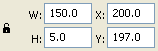
The dimensions and stage coordinates for an object in the Properties panel.

3 Select the rectangle by clicking on it with the Selection tool (V). Select Modify > Convert to Symbol to make a movie clip out of your rectangle.

In the dialog window that appears, select Movie clip as type and call it blue loading bar. Well, you can call it anyway you like, I called it like that because I used blue as the color for the rectangle. Just don’t make it white if your movie background is white too :)

Now, one important thing! In the registration portion of the Convert to Symbol window, click the middle left rectangle (see it on the image below). This will be the movie clip’s registration point. You may click OK now.
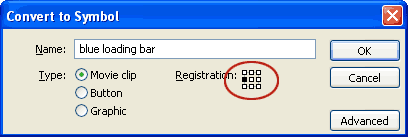
Setting the options for a new movie clip symbol.

Why is this necessary, you may wonder? Well, the loading bar shows how much of your Flash website remains to be loaded. And it makes sense that it stretches from left to right, right?

You may eventually choose to make your loading bar stretch to both sides, or from right to left, but I will stick with the standard left-to right in this lesson.

To see what difference makes the selection of left and central registration points for a movie clip, just look at the flash example below.

4 Fine. With your newly made movie clip still selected on stage, go to the left side of the Properties panel below the scene and assign it an Instance name. Call it loadingBar.

The Instance name field in the Properties panel.

5 Lock this layer. Make a new one and call it bytes info.
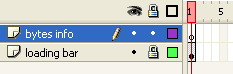
Adding a second layer to the timeline.

6 Select the Text tool (T). Go to the Properties panel once again, and select the following properties for your text field:

  1. Set the type to Dynamic text (see 1 in the image below).
  2. Select _sans as font type (it should be on top of the fonts list). This means that once a visitor comes to your site, his computer will automatically select its system’s default sans serif font – Arial for Windows and Helvetica for Mac.
  3. Select the central alignment for your text field (you can choose some other type of alignment, but central is nice since your text field will thus be centrally aligned with the loading bar above it).
  4. Select the Use device fonts option. Why? Simple:
    • In this way, you don’t have to embed the characters in your text field (because the font will be read directly from the user’s machine) and this makes your SWF smaller in filesize.
    • You’re also making the first frame of your movie lighter, which is important, because you want it to load immediately. If a user sees a blank screen (suppose the first frame with your preloader is heavy with font characters and graphics)
  5. Leave the “selectable text” option turned off. Why would anyone want to select (and even copy) the text which tells how much bytes remain to be loaded?
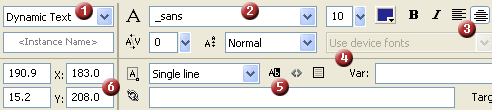
All the properties for the dynamic text field.

7 Click and drag out a text field just below the loading bar.
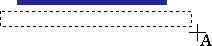
Creating a text field on the stage.

Hit Esc to exit text editing mode.

8 Set the position coordinates of your text field to round numbers (see 6 in the big image above). This will make the text in the field render properly, you will avoid any blurry characters.

9 Give this field an Instance name, otherwise you won’t be able to tell it what to display via ActionScript commands. Call it bytesDisplay.
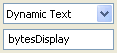
The Instance name of the text field.

Lock this layer.

Top of page

Creating the text field with percentage information that is going to be animated

10 Make a new layer and call it arrow indicator.
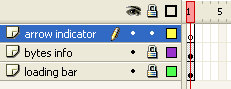
Adding a layer for the animated textfield.

11 Draw a nice small triangle just above the loading bar’s left edge. NOTE: Once you locked its layer, the dynamic text field isn’t visible. But don’t worry – it is still there :)

Adding a small triangle above the loading bar.

If you don’t know how to create a precise little triangle like the one in the image above, I’ll show you quickly how to do it here:

  1. Draw a borderless square with the Rectangle tool (R) by holding Shift while clicking and dragging your mouse.
  2. Rotate the square by 45 degrees with the Free Transform tool (Q).
  3. Select the Line tool (L) and draw a line from the square’s left to its right point. To do this exactly from edge to edge, be sure to have the Snap to objects option turned on (the small magnet icon at the bottom of the Tools panel).
  4. By using the Selection tool (V), select the upper portion of the rectangle and hit Delete.
  5. Select the line and erase it too.

The following figure displays the sequence of these steps:

Creating a triangle out of a square in Flash.

To make life easier, draw a big square and once you have obtained the triangle, just make it smaller either with the aid of the Free Transform tool (Q) or by entering its dimensions manually in the Properties panel.

Also, be sure that the triangle is positioned on round coordinates (like you did with the text field previously) so that it renders sharply. After you did that, move it to its final position with the aid of the arrow keys on your keyboard. By doing that, you can move the triangle around and it will stay on round coordinates – the arrow keys move your objects exactly by 1 pixel at a time.

12 With the triangle still selected, press F8 (or select Modify > Convert to Symbol) to convert it to a movie clip.

Call it moving percentage field and make sure that the registration point is on its left middle side.
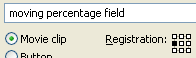
Converting the triangle to a movie clip symbol.

13 Double-click on the newly made movie clip on stage to enter inside it. You know that you are inside the movie clip now (working on its timeline and not the main scene) if you look above the layers.

Icons showing the timeline you are working on right now.

14 Call this layer (inside the movie clip, yes) arrow.

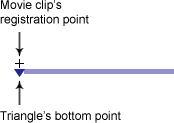
15 Select the triangle drawing and move it so that its bottom point is centrally aligned below the movie clip’s registration point.

The line seen in the image below is the loading bar on the main scene, which is seen as faded because you entered inside the movie clip – everything on the main scene is a little bit faded, to make the distinction between these objects and the ones inside the movie clip, so don’t let that confuse you.

Aligning the triangle with the movie clip registration point.

Why you must make this so? Because the percentage text field and the arrow will move as the loading bar progresses. To be able to have the arrow always placed at the loading bar’s right edge, you are making these adjustements now.

16 Lock this layer. Make a new layer above it and call it text field.
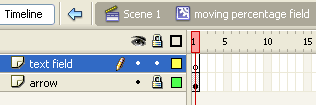
Adding a layer inside the movie clip.

17 Select the Text tool (T), click and drag to create a small text field just above the triangle.

Making a new dynamic text field, this time inside the movie clip.

18 Leave all the properties for the dynamic text field the same as they were for the first one you created. Just make a small adjustement: set the alignment for the text field to left.

Setting the text alignment to left.

The left aligned text will stretch to right as the movie loads and the information changes (for example 3%, 15% and 100%), instead of stretching to both sides if it were centrally aligned. This wouldn’t look so good while the movie clip is moving parallelly with the loading bar, hence this change.

19 Give this text field an Instance name: call it percentDisplay.
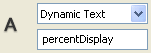
The Instance name to be used by ActionScript later.

20 Lock this layer. Click on the Scene 1 link above the layers to return to the main scene.

Returning to the main scene in Flash.

21 Use the arrow keys to adjust the position of the moving percentage field movie clip. Place it so that the blue triangle points at the loading bar’s left edge.

The final position of the movie clip in relation to the loader bar.

22 Finally, give this movie clip an Instance name: call it percentClip.

Lock this layer.

Continue onto the second part of this lesson to see
how to insert website contents and write the ActionScript code that powers the preloader.

Top of page

Comments

Submit a comment

  • Raul Oct 23, 2008 at 11:15 am

    Excellent explanation!
    I haven’t had any problems following the steps
    Thanks!!

  • Luka Oct 23, 2008 at 11:40 am

    Stick around Raul, there are going to be more lessons like this one! :)

  • Eugene Oct 23, 2008 at 6:43 pm

    Very well done, I only had one problem. In order for my text fields to show the text, I had to remove the “.text” extention after it. Now it works perfectly. My preloader frame is 5 kbs for some reason though.

  • Luka Oct 23, 2008 at 8:57 pm

    Eugene: It should work. Maybe you used a different version of Flash? Also, don’t worry – the weight of your SWF in the first frame depends on the objects you have there, any embedded fonts etc.

  • Shay Oct 26, 2008 at 7:15 pm

    It says there is a problem with the actionscript when i test the movie..
    something with gotoAndPlay(5), i thought its because i dont have 5 frames but i do have.. help please

  • Luka Oct 26, 2008 at 8:45 pm

    This is made for ActionScript 2.0. If you are working in Flash CS3, check that you have actually reverted to AS 2.0.

  • Viktor Oct 30, 2008 at 12:03 pm

    Great tutorial. Easy steps to follow and good pictures. Keep up the good work :) !

  • Luka Oct 30, 2008 at 6:47 pm

    Viktor: Thanks and spread the word about FlashExplained.com! :)

  • goatboy Nov 2, 2008 at 2:02 pm

    having a bit of a problem… anyone know a good tutorial for a preloader with a pic in the background of 200kb or so… just dont want the white screen before it is there any way to get this to work.. there are tutorials all over the place but the advice ive been given so far as to how to sort this has been less than usefull
    any help would be most appreciated

  • Luka Nov 2, 2008 at 2:09 pm

    goatboy: The meaning of a preloader is to show your visitors that something is loading. If you put a 200 KB pic in the background, without a preloader, they will have to wait with a blank screen for some time and will probably leave your site. You can make a preloader for the image and then have another one for the website, but what’s the point of that?

  • jo_d Nov 4, 2008 at 2:39 am

    Thanks for the info in this tutorial. So would this preloader then be suitable for the following scenario:?

    I have a flash movie that is over 2mb with no preloader currently. The entir movie is on the timeline and approx. 800 frames but simple transitions and graphics. If I break out the full animation into 4 main movie clips and have the initial preloader preload MC1, can I then have MC 2 loading while MC 1 is playing and so on? So that at the end of MC4 the full animation loops back to begin at MC 1?

  • Luka Nov 6, 2008 at 1:27 am

    jo_d:You can use this preloader to preload the entire 2 MB. But you can make progressive preloading, sure. I would load external SWFs – check out my tutorial on that (complete preloading menu system).

  • Alex Nov 6, 2008 at 11:33 am

    Ola Luka

    meu preloader n funcionou! vc poderia entrar em contato pelo meu email!

  • Luka Nov 7, 2008 at 9:26 am

    Alex: I understand you, but this is a website in English so please do speak so. Also, I am not resolving any problems by e-mail.

  • Baron Nov 7, 2008 at 4:44 pm

    The preloader works great but will not disappear when I added it to the first 5 frames of an exisiting site.

    What am I doing wrong?

    Thanks

  • Luka Nov 9, 2008 at 10:29 am

    Baron: You should make sure that the preloader doesn’t last as long as your content in the timeline.

  • Roger Stephenson Nov 12, 2008 at 8:26 pm

    Hey, Great learning experience. Got a little lost around point 14, but I figured it out on the second attempt. Keep up the good work! Now if I could force a loop of just the content!

  • wyatt hicks Nov 17, 2008 at 4:14 am

    the preloader dosen’t load right away. when it finally appears it shows est.
    30 seconds has elapsed. the first frame shows 2048 kil. but only the bytes, arrow, loading bar and action frames are in frame one.

  • Andrew Nov 17, 2008 at 5:50 am

    Thanks man it was a big help, even though it was for websites I just used for an animation and it worked fine. Thanks again!

  • Luka Nov 18, 2008 at 10:29 am

    Roger Stephenson: You mean for loading different content while the site has already been loaded?

    wyatt hicks: Check if you have got some heavy content in your first frame, or some sound, or some element in your library which loads before other elements (like a component for example).

    Andrew: I’m glad, because I just forgot to mention that it could be used for animations and the like also.

  • Thank you!
    Excellent job! Very helpful!

  • mariano Nov 19, 2008 at 1:01 am

    Hi! I found this preloader exactly what I was looking for: I changed the small triangle for another clipart and changed the colors, but I do have a qestion. I would like to know how to insert this preloader in order to load some scenes in my site. What do I have to change in the script? I dont know if I am being clear in what I ask for…
    Thanx in advance, Mariano

  • shanth paul Nov 19, 2008 at 5:22 am

    Very well explained, very need, deep lesson and its easy to grab it
    good keep it up and do more, this not an order but an appreciation.
    good work

  • dave Nov 19, 2008 at 4:46 pm

    This is really good stuff kudos to the author Luka. The only thing is the actually site that only lets me view half the page. That part looks bad.

  • Luka Nov 23, 2008 at 5:24 pm

    Stefan Stoyanov Sultanov: Thanks!

    mariano: Do you mean load different animations?

    shanth paul: Thanks :)

    dave: How do you mean half of the page? How did you arrive here? Maybe you’re seeing from another site, from a frameset.

  • Scott Dec 1, 2008 at 1:18 pm

    Perfect.

    Thanks alot!

  • Nombo Dec 10, 2008 at 11:29 am

    Thank you so much. This is very simply explained. I have saved this as a default file to start off with whenever i start a new project!

  • EGT Dec 10, 2008 at 7:30 pm

    i tried it in CS3 and AS2.0 ….. didn’t work at all. i wasted my time on following every single letter written in this tut, but no luck!

  • Bu Hamad Dec 20, 2008 at 10:34 pm

    im facing an problem with the indicator that it doesn’t move and the second problem with the sound clip, when im inserting it ,,

  • Skyler Dec 24, 2008 at 7:49 pm

    thank you so very much Luka.

    may you always be blessed

    :-)

  • Paul Cosmin Dec 26, 2008 at 10:16 pm

    Hi,

    I have lots of stuff in the in the library “which loads before other elements”. When I start the simulate download I have to wait until the first frame has been loaded (where the preloader resides).

    How can I resolev this conflict ? I have in my library 200 KB and it will load like 180 kylobytes and then the first frame. How do I get this first frame to download first :)

  • Nihal Jan 5, 2009 at 5:51 am

    Its very helpful for any designer.

  • Rodrigo Jan 9, 2009 at 1:38 am

    Great explanation, Luka! Thanks a lot!
    I have one little trouble with ActionScript when I try to load my site and it’s the following message:

    “**Error** Escena=Scene 1, capa=actions, fotograma=1:Línea 4: Se espera ‘{‘
    function preloadSite():Void {

    Advertencia: Esta película utiliza funciones no admitidas en el Flash Player 5
    Escena=Scene 1, capa=bytes info, fotograma=1:Nombre de instancia de campo de texto de Flash MX
    Símbolo=movie percentage field, capa=text field, fotograma=1:Nombre de instancia de campo de texto de Flash MX
    Total de errores de ActionScript: 1 Errores comunicados: 1″

    Is there any way I can contact you to send you my source, as I don’t know anyone who knows about Flash and I’d really like to solve it.

    Thanks a lot! :)

  • Jack Jan 13, 2009 at 1:32 am

    The preloader worked great, but all of a sudden I have a 4MB first frame. All that’s there is the preloader and a 52kb background. How would I go about finding the “offending” bytes?

  • Jack Jan 13, 2009 at 3:54 pm

    I found the situation. I had a few large items “exported to the first frame.” The audio files I could remove, but the image files for the Scroll Component won’t work unless they are “exported to the first frame.” Any way around this?

  • Anderson Jan 20, 2009 at 3:22 pm

    This tutorial is the best preloader tutorial I’ve found in the internet. Its just impossible to miss anything, as it is precisely explained step by step, and goes beyond, explaining the AS code (the tropicalJuice thing marks the first time ever I get to understand any AS at all). Thanks a lot for this.

  • Kame Jan 21, 2009 at 6:28 am

    Thank you very much!

    Hvala lepo! ^_^

  • Abbas Jan 24, 2009 at 7:32 am

    Thats Great. Thanks Sir. Thanks so much. >:D<

  • sam Jan 26, 2009 at 2:53 pm

    Great tutorial,

    Very rare to get such careful and thorough consideration to the reader.
    An excellent teacher, thankyou.

  • vaal Feb 2, 2009 at 10:05 pm

    10 x for this lesson. just stared my own site on don’t know how to deal with the preloader… i’ll update with the preloader done as U have described soon…

    thanks again

  • HooBlah Feb 3, 2009 at 5:49 am

    How do i get this preLoader to load a completely different / separate SWF file???

  • Boundless Ink LLC Feb 4, 2009 at 5:03 am

    This is a great tutorial, it worked great when i wanted to load a picture, BUT i have a site that i wanted to use it on and its not working…my content starts on frame 5 like it says, and it just doesn’t load for some reason. I took the same files that i did step by step in the tut and applied it to the website and it wont show the loader…any suggestions? Thank you in advance…

    -Don

  • avinash Feb 12, 2009 at 6:54 am

    you are genuine people.
    it was just good.

    no problem at all.

    thank you so much

  • Duffman229 Feb 16, 2009 at 5:15 am

    Awesome! finally a preloader that works for me!!! =P

  • Bryan Feb 17, 2009 at 6:57 pm

    That preloader is awesome thank you, so simple; really appreciate the info. It was giving me a bit of the same problem as Wyatt Hicks; but I figured out what was wrong. I had a bunch of stuff loading in the first frame; the properties of some of my biggest class files was set to export in first frame because I gave them export names and didn’t uncheck the export in first frame box.

  • John the Designer Feb 18, 2009 at 6:22 am

    Dude, you’re awesome.
    Thanks for such a well written tutorial.
    Gives us non-developer-type “creatives” a fighting chance in this economy!

  • Nasaed Feb 21, 2009 at 3:28 am

    You are just amazing man, i couldn’t find a better explanation. Thanks a lot for the knowledge!!!

  • Lalit Feb 28, 2009 at 7:48 am

    preloader is not working he is not showing progress he directly reaches on frame 5. so pls help me

  • hillspro Mar 3, 2009 at 5:16 pm

    Lalit, Are you using the downloaded file? Try copying the frames to a new flash doc. I had the same problem from the downloaded file.

    Also, what would be the difference if i took out the setInterval and placed preloadSite(); in a onEnterFrame function?

  • jorge Mar 26, 2009 at 9:09 pm

    Thanks a lot, but doesnt work por nme, im using flash MX, in test movie, the preloader appears one second, and is not showing any evolution or text showing percentages etc, just one plain image, not a movie. What should be wrong? can you help please, i have copied the script and made the hole process step by step. Thanks

  • Luka Mar 27, 2009 at 2:14 pm

    “im using flash MX” –> Check out the title of the tutorial

  • AndyG Mar 27, 2009 at 10:54 pm

    Hi!

    I dont want to sound wired but I want to ask everyone a question. Can I use a preloader with a html or php page instead of a swf or picture?If so can you tell me how?

    Thank you in advance and much appreciated!

    Best regards,

  • BoredNeko Apr 10, 2009 at 6:01 pm

    Nice tutorial!!

    just one problem XD there is a way that i can put this preloader in front of an animation im doing right? i tried various times to do so, but the preloader remains at frame 5. also, the loading bar and the text doesnt quite show its progress..it simple jumps to frame 3….Any clue as to how i can fix this?

    Pls help me out Luka!! ANYONE!! i need to resolve this asap! =3

  • devson Apr 12, 2009 at 12:03 pm

    It is really a nice tutorial, and i have basic knowledge of flash. And i have been trying to worl out how the preloader work…but everytime i make it gives error all the time… here with the action script copied from ur tutorial i still get this error

    **Error** Scene=Scene 1, layer=action, frame=1:Line 4: ‘{‘ expected
    function preloadSite():Void {

    **Error** Scene=Scene 1, layer=action, frame=1:Line 16: Unexpected ‘}’ encountered
    }

    Total ActionScript Errors: 2 Reported Errors: 2

    can u guide me

  • David Park Apr 12, 2009 at 9:47 pm

    Is it possible to make a play button?

  • [...] http://flashexplained.com/preloaders…al-preloaders/ [...]

  • Chris Apr 16, 2009 at 3:45 am

    Thanks for the preloader..

  • Steve May 7, 2009 at 2:43 am

    My SWF files have many MP3 audio files that are exported to frame 1. They are also ALL ActionScript 2 based and DO NOT use the timeline for anything. All of my AS code resides on frame 1 or in custom Classes. The type of Preloader you describe works fine IF you have no audio files in your SWF.

    What I have had to do is create a separate “Preloader” SWF that will then load the main SWF into itself. The Preloader SWF is set to the same pixel resolution and FPS speed as the main SWF.

    Any other method I’ve tried results in a blank screen while the audio files are downloaded, then once the audio files have completely downloaded, then the preloader graphics appear on the screen and the rest of the SWF downloads. This, of course, is unacceptable..

    Do you know of another way to accomplish what I am doing besides using two separate SWF files like I am currently using?? Again, it is the audio files that are making it difficult to incorporate the preloader and the flash content all into a SINGLE SWF file.

  • Neil May 18, 2009 at 8:54 pm

    Hey everyone

    Brill tutorial, well impressed….anyone got a suggestion for gettin a preloader to work in a flash presentation?????

    I am goin crackers with this puzzle!!! # ; – (

  • Ken Jun 10, 2009 at 12:23 pm

    Hey Luka

    Finally I understand a tutorial about preloading external images, and now it’s for actionscript 2. Can you please help me how to convert this code to actionscript 3?

    Great way of explaining, really, best tutorial I found in 1 day searching.

    Ken

  • Ken Jun 10, 2009 at 12:26 pm

    ok, just read the last line of your tutorial.
    going to the link of kirupa now… thanks!
    Ken

  • sathish Jun 11, 2009 at 10:47 am

    this was heplful

  • cher Jul 12, 2009 at 2:38 am

    Hi Luka,

    Thank you for this tutorial…well I almost have it, but not quite. Here is the issue. I placed the preloader in my working website but the preloader does not even begin for several seconds in Safari and it animates way too fast in Firefox, at least on my computer. I have not tested yet on a pc. I am not sure what I have done wrong. Can I send you my fla. file to take a look at?

    I also posted the link to the working file above if that helps. The swf is 692 KB and I thought maybe I did not even need a preloader but it does take a few seconds without one so it seems necessary.

    Please advise.

    Thank so much!

    Cher

  • tom Jul 13, 2009 at 6:47 am

    i love ur stuff. very helpful. i only have 1 problem. my flash file will not will not auto-play and as was as i can see the preloader does not launch. however, when i simulate the download it works perfectly. thank you in advance.

  • tom Jul 13, 2009 at 7:15 am

    i had to replace gotoAndStop(5) with gotoAndPlay(5); but im not sure if this is right however it works now.

  • mark Jul 16, 2009 at 12:29 am

    hey im having the same error

    **Error** Scene=Escena 1, layer=acciones, frame=1:Line 4: ‘{‘ expected
    function preloadSite() : Void {

    **Error** Scene=Escena 1, layer=acciones, frame=1:Line 16: Unexpected ‘}’ encountered
    }

    Total ActionScript Errors: 2 Reported Errors: 2

    can someone help me?

  • Erick Jul 27, 2009 at 5:26 pm

    Hi!
    Thanks a lot for the tuto! it works great.

    Only a question… Can I use an .flv movie to make a preloader?

    Thanks again

  • Erick Jul 27, 2009 at 5:28 pm

    Sorry isn´t a .flv movie, is a .swf

    Can I use it for my preloader…

    thanks

  • Graham Agnew Jul 28, 2009 at 9:25 pm

    Excellent, thanks. The only instructions that I’ve ever understood – and got to work!

  • Catie Jul 31, 2009 at 2:44 pm

    I have a map in Flash 8 that works perfectly.

    I made a copy and moved all layers content to frame 5 when I was trying to add the preloader and now my map FLASHES it doesn’t stay on the screen. Does anyone know what is causing this please?

  • matt Aug 11, 2009 at 3:56 am

    Thanks a lot for the tutorial!

    One problem though – nothing shows up until the swf is just under half loaded. the loading bar, percentage clip…nothing shows up until about 48 percent loaded. I looked at the bandwith profiler and this is because it is saying the first frame is 144 kb (half my movie right now….) .I don’t see how this can be…everything is empty until frame 5.

    any ideas?

    Thanks

  • matt Aug 11, 2009 at 4:01 am

    Catie: make sure you have the stop(); at the start of your actionscript. If it’s there you might want to debug this bit:

    if (siteLoaded >= siteTotal) {
    clearInterval(loadingCall);
    gotoAndStop(5);
    }

    It might not be entering the IF for some reason (where it goes to 5 and STOPS)

  • matt Aug 11, 2009 at 4:21 am

    Figured out my problem: I forgot I had a scroll pane that was using a MC exported in the first frame…my bad. works now!

  • francesco Aug 17, 2009 at 3:13 pm

    AMAZING tutorial! Do you know how can I change the script so that I can use this preloader to load movie clips within my main “scene1″? Any help would be greatly appreciated =)

  • Ogie Sep 11, 2009 at 3:07 am

    thank you master, this article is helpfull and usefull for me…

  • Max Sep 13, 2009 at 3:28 pm

    The downloadable .fla file doesn’t work.All I can see is a picture of the ocean with a wonky tree….The tutorial is too long in such that if the .fla doesn’t work I could be wasting my time even starting the tutorial..What version of Flash is it designed for because I’m using Version 8 and it definitely doesn’t work for that??

  • Dan Oct 5, 2009 at 4:58 pm

    This was easy and helpful- many thanks to you Luka.

  • haris Oct 27, 2009 at 8:16 pm

    does this also work without putting it on the website?
    i need to present to class but it takes soo long to export movie, so i was wondering if i can use this loading bar for that?

  • Irene Nov 16, 2009 at 7:47 pm

    Excellent tutorial. It is detailed and structured and with some humor. It worked perfectly.

    Thank you very much!

  • ariana ketoet Dec 17, 2009 at 5:53 am

    very good tutorial…..thank’s for the tutorial….it very help me to make the preloaded flash

  • A. Rehman Dec 20, 2009 at 2:13 pm

    comments are incapable of expressing the deserved thanks

  • Sebastien Dec 25, 2009 at 6:29 am

    I can not rid of this syntax error!

    **Error** Scene=preloader, layer=actions, frame=1:Line 4: ‘{‘ expected

    whats up???

  • Gonzo Jan 27, 2010 at 9:42 am

    Hello from Spain
    it’s all very good explained, but perhaps is because i’m working with flash CS3.

    But give me an error

    Escena 1, capa 5, fotograma 1 line 4 .
    ERROR no se encontró el tipo o no es una constante en tiempo de compilación. Void

    I dont´t know what`s the problem.thanks

  • Thanks for a good tutorial but indeed it takes 22 steps to get the results.
    I just wanted to share the actionscript opensource component to implement preloaders with no AS code at all.
    Take a look at its project page at sourceforge: http://sourceforge.net/projects/preloaders/
    More over, nice loading animations are also available there.
    Cheers.

  • Msnake Jan 29, 2010 at 5:16 am

    es muy buen tutorila pero a la hora de probarlo para ver como funciona me manda 5 errrores si me pudieran ayudar se los agradeceria estos son los errores que me salen

    **Error** Escena=Escena 1, capa=acciones, fotograma=1:Línea 3: Error de sintaxis.
    loadingCall var: Number = setInterval (preloadSite, 50);

    **Error** Escena=Escena 1, capa=acciones, fotograma=1:Línea 4: Error de sintaxis.
    preloadSite function (): Void {

    **Error** Escena=Escena 1, capa=acciones, fotograma=1:Línea 5: Error de sintaxis.
    Número siteLoaded var: = _root.getBytesLoaded ();

    **Error** Escena=Escena 1, capa=acciones, fotograma=1:Línea 6: Error de sintaxis.
    siteTotal var: Number = _root.getBytesTotal ();

    **Error** Escena=Escena 1, capa=acciones, fotograma=1:Línea 8: Se ha detectado un ‘=’ inesperado
    = loadingBar._xscale porcentaje;

    Total de errores de ActionScript: 5 Errores comunicados: 5

  • manoj Feb 20, 2010 at 6:27 am

    this is nice and help full

  • CaptainLolzalot Apr 2, 2010 at 1:33 pm

    OMG Dude thanx this was my first Actually Working Preloader
    :D I owe u a lot :O

  • Alex May 18, 2010 at 5:55 am

    Great work :D This was the most beautiful preloader I could find on Google. One problem though, the size of my preloader is about 8KB, any help making the file smaller?

  • [...] Making the complete internal preloader in Flash 8 [...]

  • [...] Making the complete internal preloader in Flash 8, with a loading bar and mathematical preloaders In this tutorial, you will see how easy it is to create an internal preloader for your Flash site, complete with: [...]

  • [...] Making the complete internal preloader in Flash 8, with a loading bar and mathematical preloaders In this tutorial, you will see how easy it is to create an internal preloader for your Flash site, complete with: [...]

  • Giri Jul 15, 2010 at 10:27 am

    Excellent tutorial. Thank you.

  • BorneGraphics Oct 6, 2010 at 1:47 pm

    Thanks this tutorial is FANTASTIC!!!

    I have one question, I changed the attributes so my preloaded was vertical instead of horizontal. However the problem I’m faced with is when I view the preloaded in action the arrow and % moves in the opposite direction t the fill, in other words my fill moves up but the arrow and % moves down.

    Below is my code, can you please help me understand or how I can change it so the arrow and % moves up with the fill instead of down?

    Many thanks in advance.

    – code –

    stop();
    rectMask_mc._yscale = 1;
    var loadingCall:Number = setInterval(preloadSite, 50);
    function preloadSite():Void {
    var loadedData:Number = _root.getBytesLoaded();
    var allData:Number = _root.getBytesTotal();
    var percentage:Number = Math.round(loadedData/allData*100);
    rectMask_mc._yscale = percentage;
    percentClip.percentDisplay.text = percentage + “%”;
    percentClip._y = rectMask_mc._y + rectMask_mc._yscale;
    bytesDisplay.text = “loaded ” + loadedData + ” of ” + allData + ” bytes”;
    if (loadedData >= allData) {
    clearInterval(loadingCall);
    gotoAndStop(2);
    }
    }

  • SMO Marketing Oct 11, 2010 at 10:39 am

    woh great..excellent tutorial.. i like your explain method this is very easy for understood.flash tool is a very important for create animation for web page design..

    Thanks for keep up…

  • Richard Dec 18, 2010 at 6:05 pm

    I’m using flash MX professional 2004 and unfortunately for myself the AS is different. Is it possible that someone can provide this tutorial with MX professional 2004 AS or how to make the necessary adjustments because the tutorial itself is quite good but does me little good.

    Thanks,
    Richard

  • Loren Ipsum Jan 28, 2011 at 5:45 pm

    Your preloader rocks! All the other preloaders on the top hits for Google are a pain to implement… yours worked, so I used it!

    THANK YOU!!!!!!!

    Regards
    Loren Ipsum

  • [...] Making the complete internal preloader in Flash 8 [...]

  • amin Apr 7, 2011 at 8:52 am

    **Error** Scene 1, Layer ‘actions’, Frame 1 : Line 4, Column 24 : [Compiler] Error #1046: Type was not found or was not a compile-time constant: Void.
    function preloadSite():Void {
    ReferenceError: Error #1065: Variable Timeline2_f048a8b92ee54e44a62487702e98de54 is not defined.

    ReferenceError: Error #1065: Variable Timeline0_80daabe871eca4dab487e49bf6d49b8 is not defined.

  • Hashira Yusoff Apr 12, 2011 at 8:09 am

    thank you so much!!! i luv this tutorial! :D

  • [...] Making the complete internal preloader in Flash 8 [...]

  • bardakta m?s?r Aug 24, 2011 at 11:16 pm

    thank you :D

Leave a comment